Update Operators
Do not replace more than 2 operators in the same validator flow unless you fully understand the risk. Existing shares remain valid as long as the signing threshold is met. Such a limit reduces the chance of unsafe overlap between old and new operator sets.
The correct procedure depends on what validator files you still have:
If you are unsure about any step, ask in the SSV Network Discord.
You have the validator keystore
Use this path if you still have the validator keystore-*.json file and access to the owner wallet used for registration in SSV Network.
Procedure
- Confirm that you have the correct keystore file for the validator you want to move. In the JSON file, look for the validator
pubkeyto confirm. - Remove the validator from the current cluster.
- Generate new key shares for the new operator set.
- Register the validator again by following the onboarding flow for staking providers or solo stakers.
This is a remove-and-register flow. You can generate new keyshares as the first step, but do not register the validator into the new cluster until you removed the validator.
You have DKG artifacts
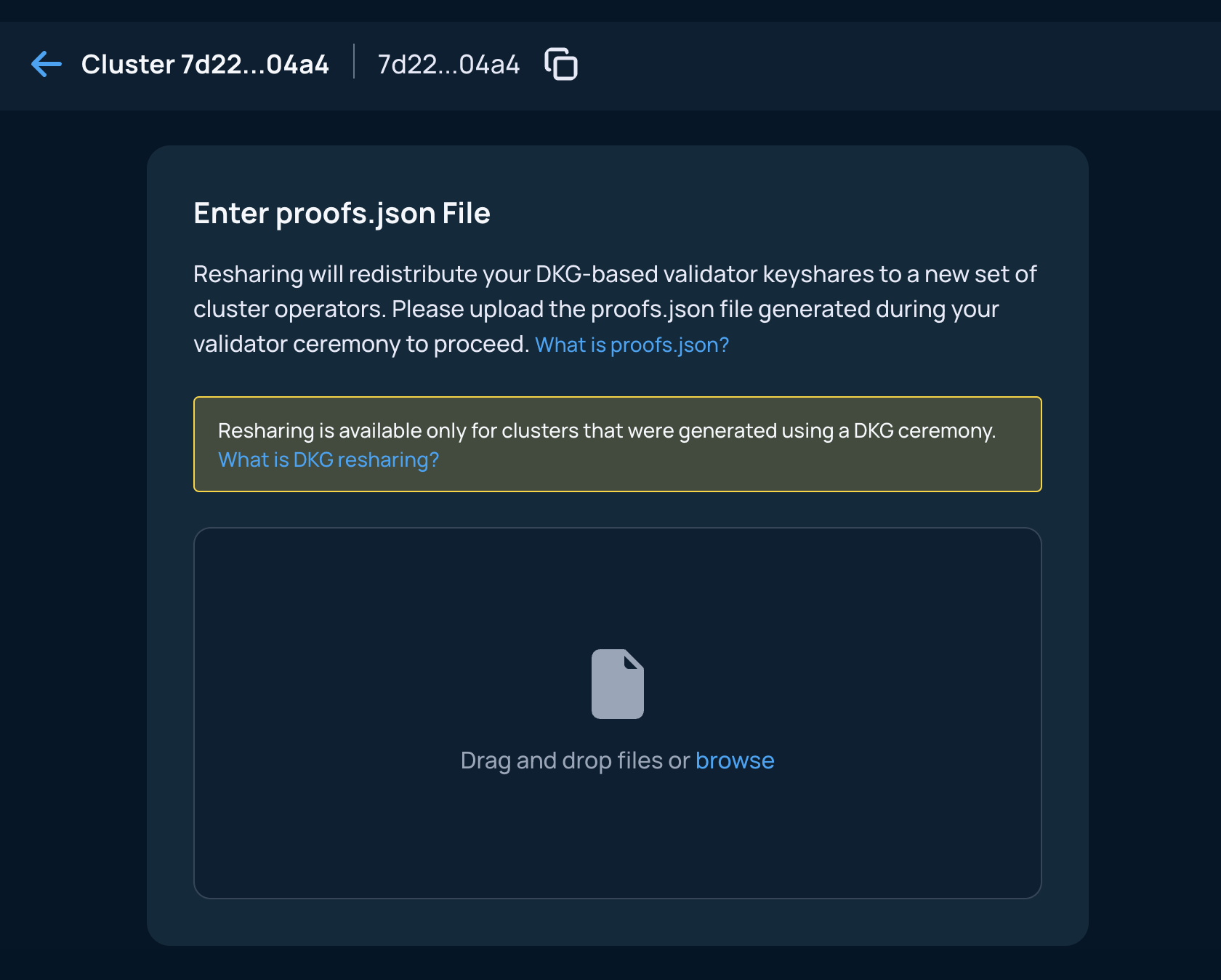
Use this path if the validator was created through DKG and you still have the ceremony output, specifically proofs.json.
Before you start
If you have several ceremony folders, open each candidate proofs.json file and confirm the validator public key at the start of the file.
proofs.jsonThe Web App does not verify that the uploaded proofs.json belongs to the validator you selected. Uploading the wrong file can lead you through the wrong reshare flow. Verify the validator public key before you upload anything.
Procedure
- Open your clusters in the Web App.
- Select the cluster that contains the validator.

- Start the reshare flow:
- For the whole cluster, click Actions → Reshare.
- For one validator, use Reshare on that validator row.
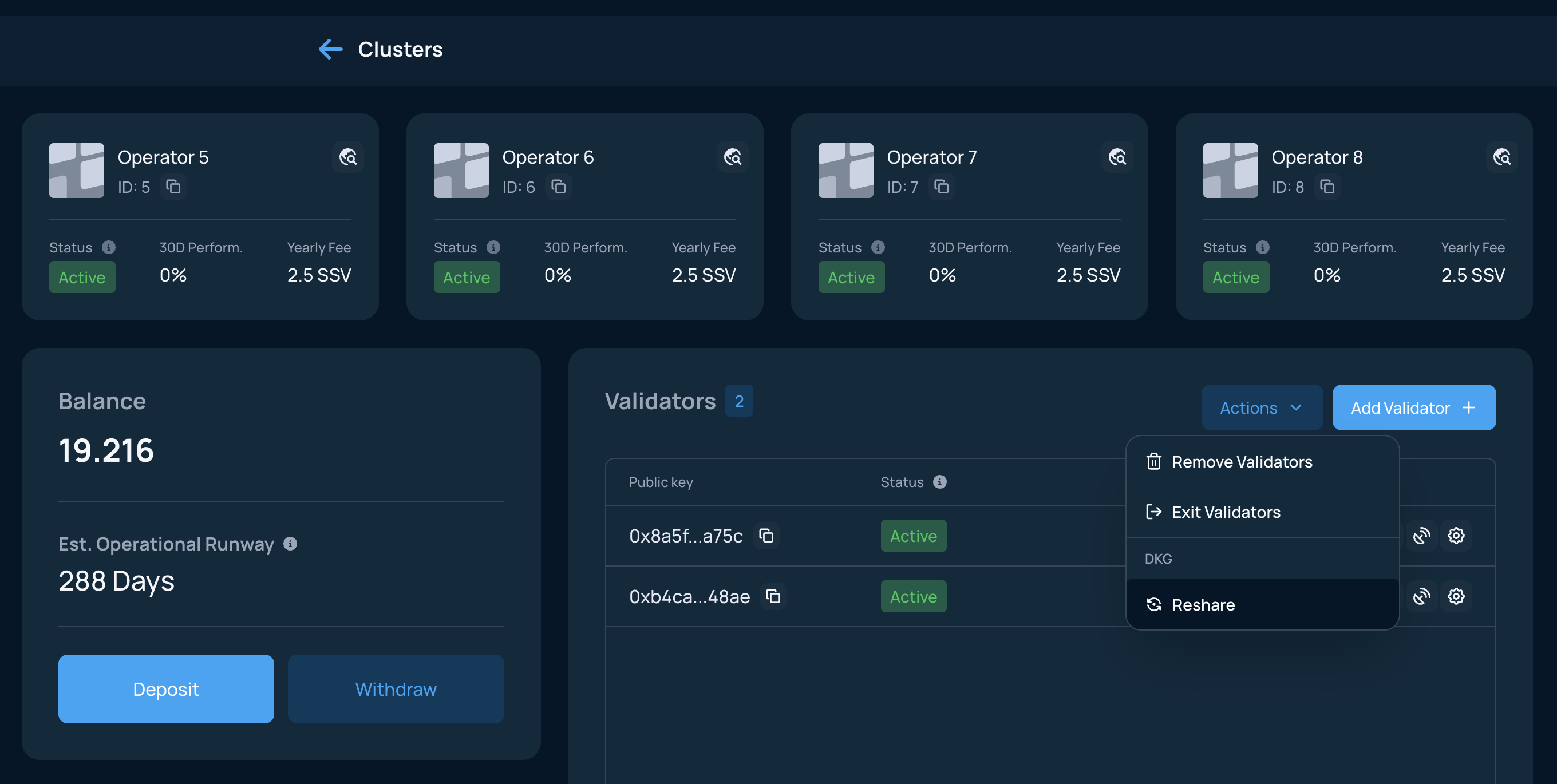
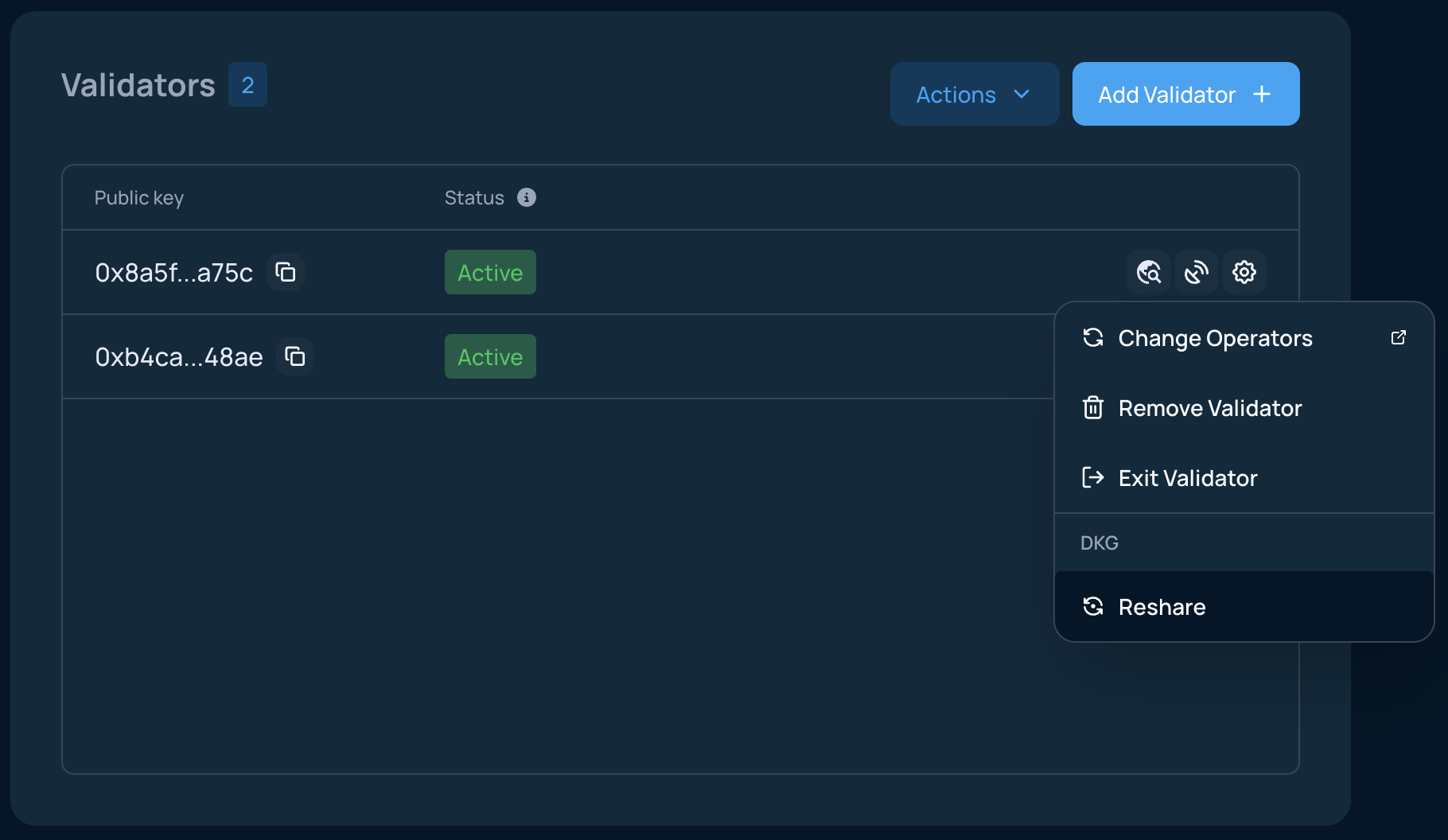
- Upload the correct
proofs.jsonfile.
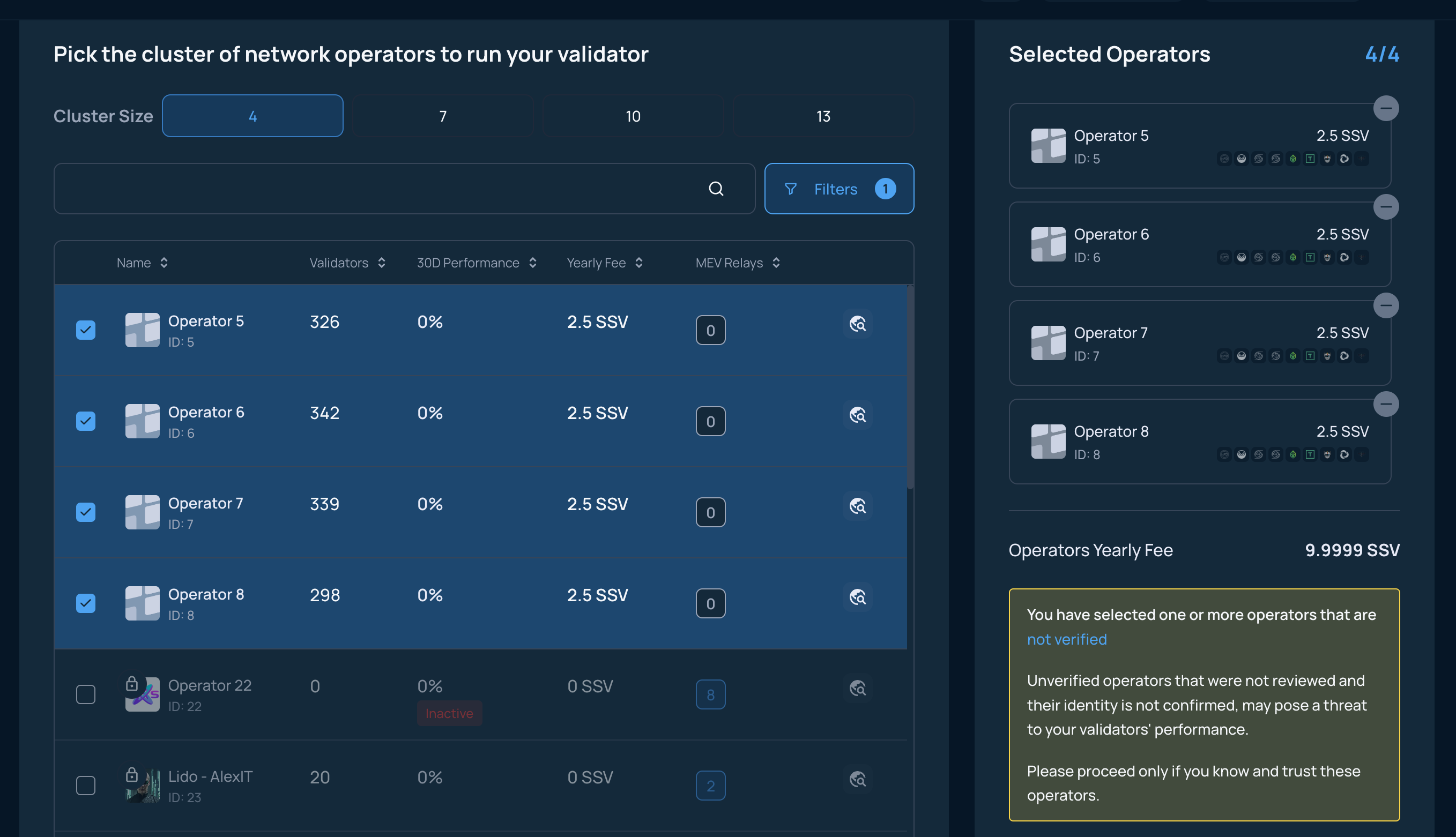
- Select the new operators, and click Next.
- Sign the ownership message in your wallet. This signature does not cost gas.
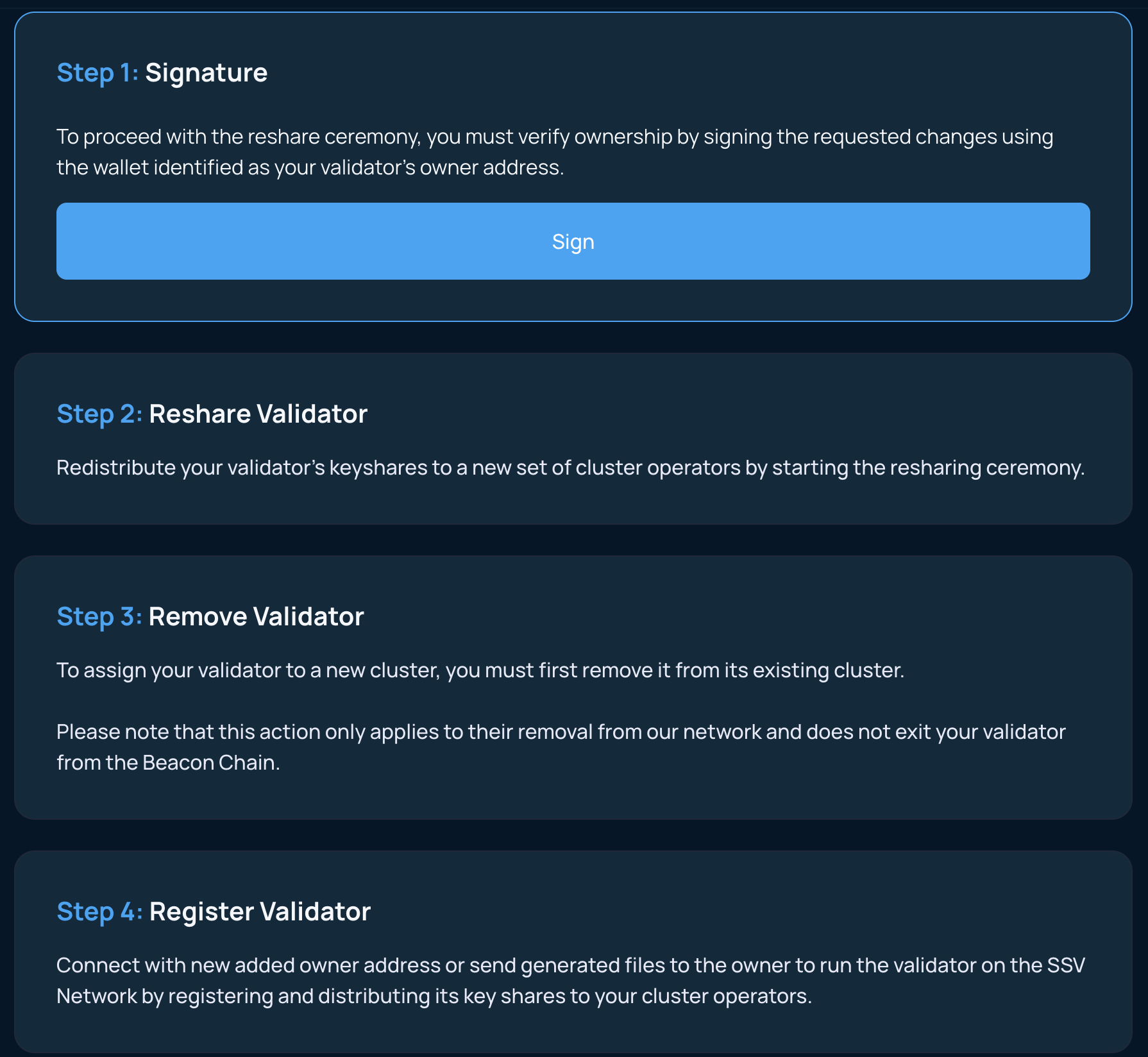
-
Run the reshare command exactly as shown in the Web App. Run it from a directory that contains the
proofs.jsonfile you uploaded.To avoid mixing old and new artifacts, it is safer to copy the original
proofs.jsoninto a separate working directory first. The command creates a newceremony-...output folder there.
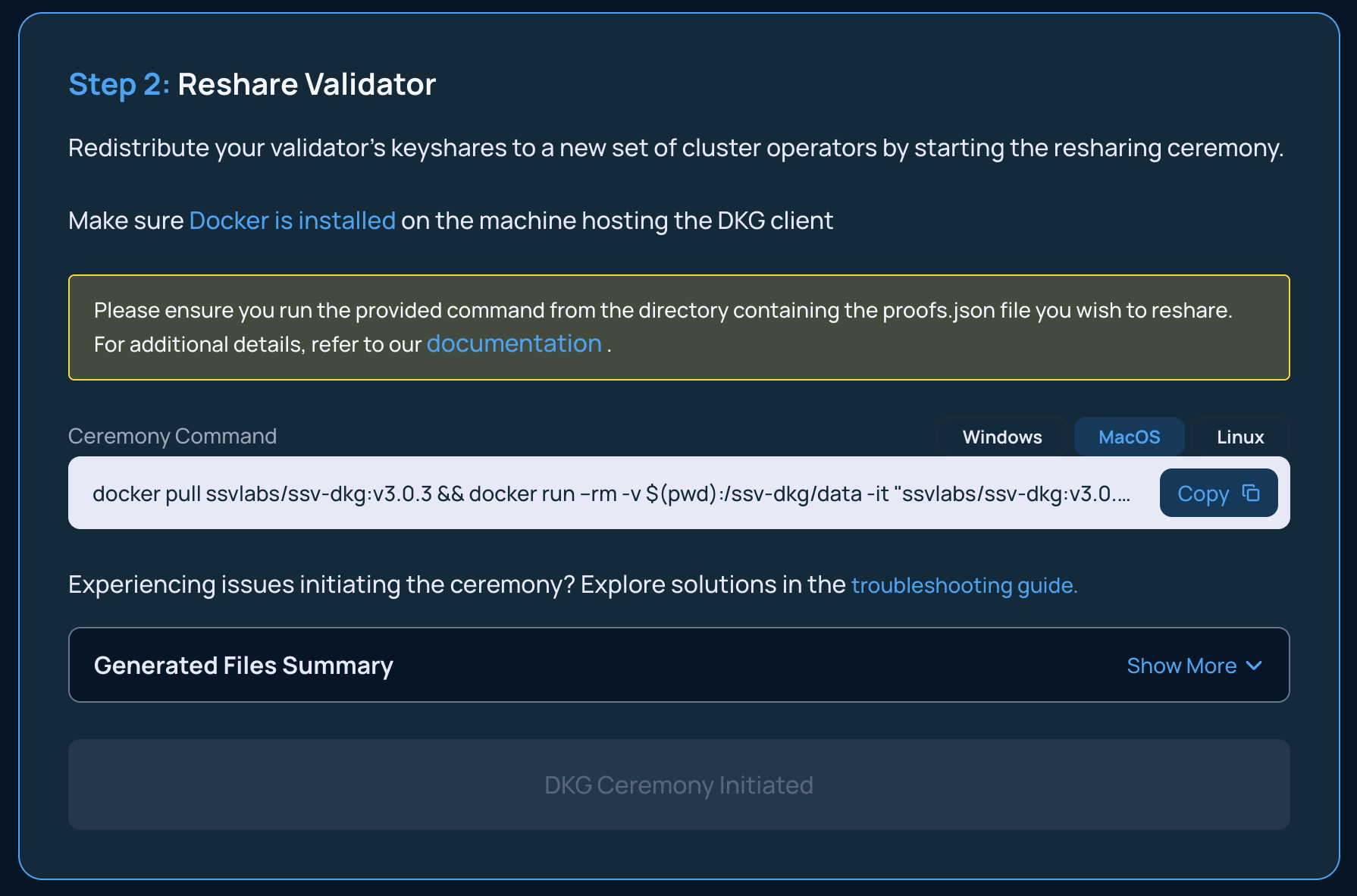
-
After the command finishes successfully, click DKG Ceremony initiated.
-
Remove the validator or validators from the current cluster.
The Web App opens a separate tab for the removal flow. Complete the removal transaction there, then come back and click My Validator Has Been Removed.
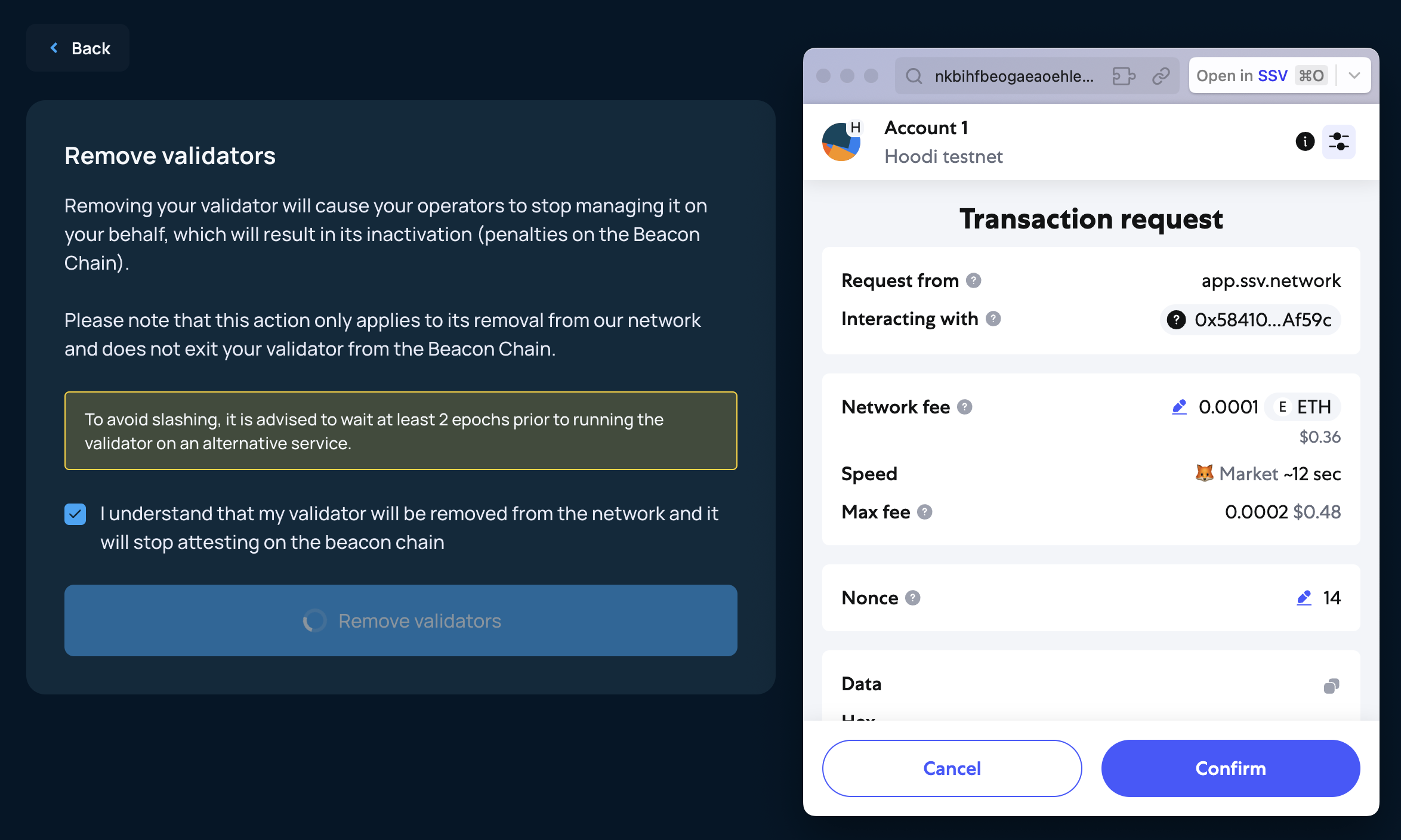
-
Register the validator again. Upload the
keyshares.jsonfile from the newly createdceremony-...folder.If the page does not load correctly after you click Back, continue with Register Validators or the solo-staker flow at Validator Registration.
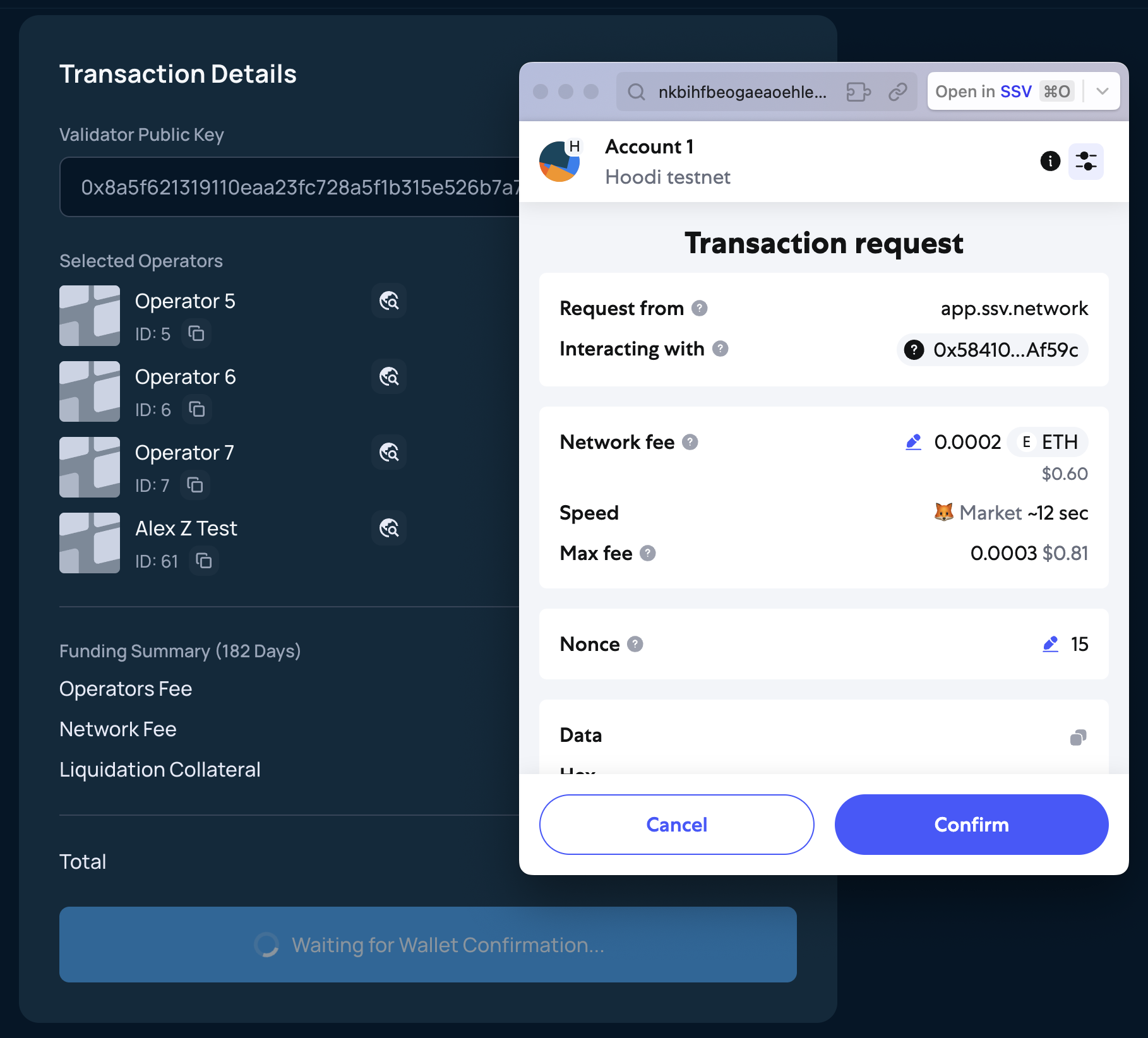
- Review the new cluster summary. Fund the cluster if needed, and sign the registration transaction.
keyshares.jsonUse the keyshares.json from the new ceremony output only. Uploading the old file will not register the validator with the updated operator set.
You have neither
If you no longer have the keystore and you also do not have the DKG artifacts, you cannot safely update the operator set in place.
Your remaining option is to offboard the validator, assuming you control the withdrawal address.
After the validator exits and you recover the ETH, generate a new validator, store the required files securely, and onboard it again with the operator set you want.